Blog &
Articles
Blinking Cursor Syndrome: Why People Freeze in Front of AI Apps (and How to Get Them Moving)

A while back, our team built an AI agent that helps bankers market loans for energy efficiency upgrades to their business clients. When users signed in, the agent greeted them warmly and laid out their options:
“Hi, I’m here to help you identify opportunities to market green finance solutions to your business clients. Do you have any general questions about green finance, or would you like to review your portfolio to identify clients who might be good candidates? Or perhaps you’d like to assess opportunities with a specific client?”
Three clear paths, spelled out plainly in the user’s preferred language. And yet, a few people in each testing session would read / listen to the AI’s greeting, stare at the screen for a moment, then ask:
“What do I do?”
“You talk to it.”
“But what do I say?”
“Well, you can do any of the options it just mentioned.”
“OK… but how?”
Not every user reacted this way: some dove in and began working productively right away. But the freeze-ups weren’t an isolated incident: we saw similar patterns across usability tests for other AI applications in different fields, involving users of different ages and education levels giving the same blank stare in response to an AI’s greeting.
Eventually, we solved the impasse by removing the free input box on the opening message and displaying a “select topic” dropdown, which helped break the ice for most users.
In some ways, this was an unremarkable case of a software company observing a usability issue and fixing it with a minor interface tweak. Yet, In other ways, it was a speedrun of how computer interfaces evolved from the late 1970s to the early 1990s. Anyone who lived through that era will recall cases of office workers freezing in front of a newly installed desktop computer, asking “What do I do?”
The answer to how that played out historically has implications for anyone implementing enterprise AI solutions today.
A Brief History of Staring at a Screen
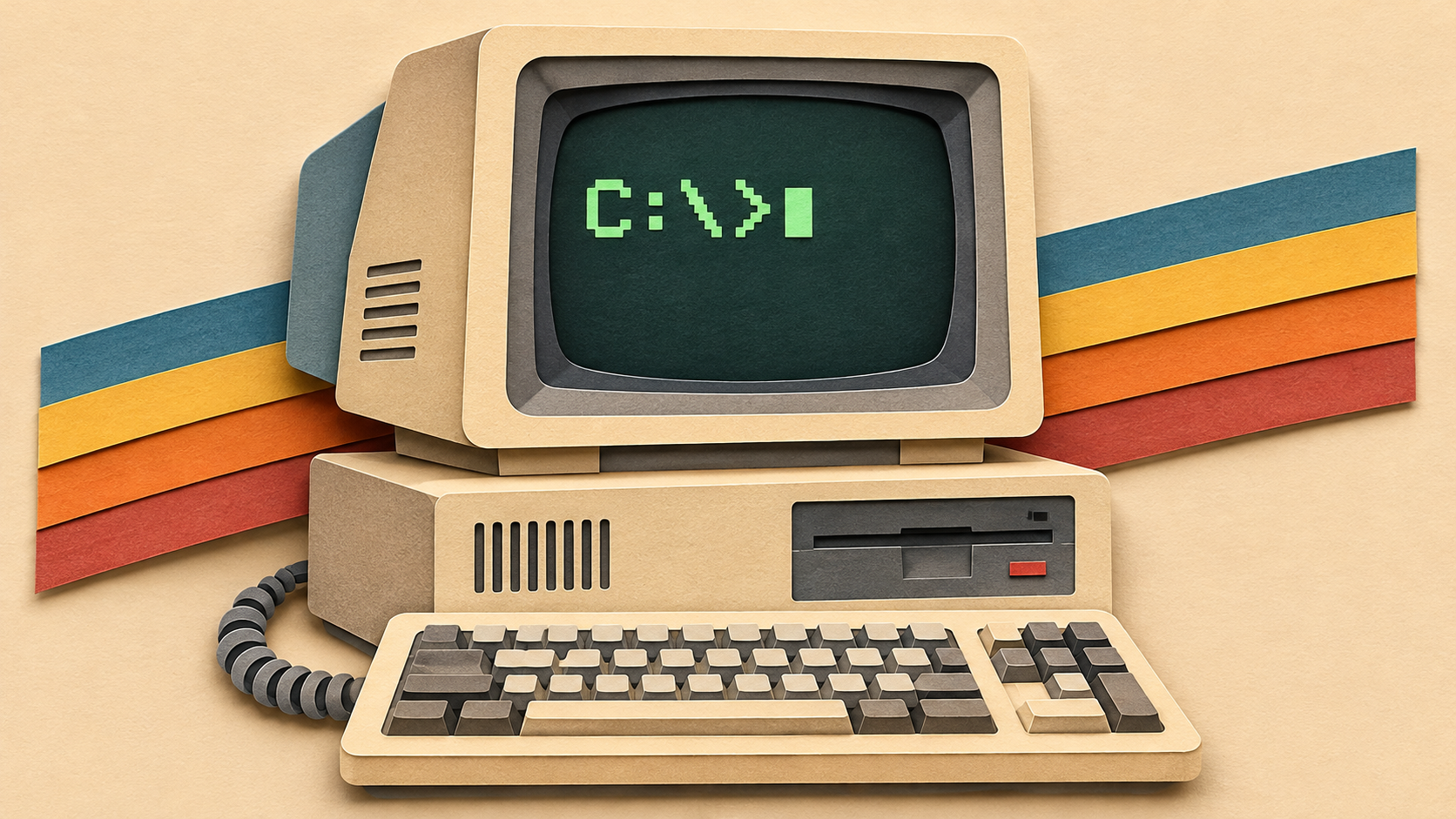
For roughly fifteen years, millions of people sat down at a computer and were greeted by something like this:
C:>_
No menu, no instructions, no hint of what the machine could do. Just a cursor, blinking patiently, waiting for you to type a command you probably didn’t know.
For workers committed enough to master early spreadsheet applications like VisiCalc and Lotus 1-2-3 the learning curve paid real productivity dividends, allowing a single employee to do the work of an entire department. But other workers simply gave up on computers, or let more tech-savvy colleagues handle the spreadsheets and word processing for them.
It wasn’t until the mid-1990s that graphical user interfaces (Windows, Mac), new applications (business email, local area networks), and the slow spread of basic digital literacy skills (through informal on the job learning and formal workshops) that computer use at work became commonplace.
Same Cursor, Different Problems

At first glance, the comparison to pre-Macintosh computer interfaces seems unfair to AI. The old command line required you to speak the computer’s language, while large language models let you speak your own.
Yet AI’s ability to process natural language only solves part of the blinking cursor problem. In our experience, issues can stem from at least four distinct causes, and each one calls for a different remedy:
- “I don’t know what to do.” This is the purest “freeze-up” reaction. The person understands the goal but doesn’t recognize the conversational invitation as something actionable. This is a usability problem, which can usually be solved with an interface tweak or training.
- “I don’t know what’s possible.” The person uses the AI for the one obvious thing (or asks for something the AI really isn’t designed for) and never discovers what else it can do. For example, instead of using a proposal writing agent to collaborate on a proposal, a banker uses it as a search engine (User: “Does my provincial government offer incentives for businesses buying solar panels?” / AI: “I found a reference to a program that ended three years ago, but you should check the government’s website for current information.” / User shrugs and closes the window). This is a discovery problem, requiring user education.
- “I don’t understand the task.” One of the great things about AI is that it can help organizations delegate repetitive yet knowledge / judgment-intensive tasks to junior staff members. For instance, instead of having a social worker with a master’s degree scroll through job listings in search of employment opportunities for their clients, the social worker can write up profiles for each client then hand the task off to an administrative assistant with an AI copilot. But this assumes the workflow is directed enough for the admin to perform whatever steps the AI agent cannot. Otherwise, there’s a risk the user will end up misusing the tool, unable to notice when the outputs are drifting out of acceptable tolerances. This is a competency problem, not a usability problem, and no interface tweak fixes it. The fix has to be designed into the AI coach’s workflow, paired with managers who can spot check the deliverables and offer guidance on how to get quality results.
- “I would prefer not to (engage with the AI).” The person sees no connection between the tool and the work they’re actually measured on, or understands the tool perfectly well and sees it as a potential threat to their job. We’ve seen workers in feedback sessions passionately criticize the performance of AI applications that we knew, from system logs, they’d never actually used. These are issues of motivation and incentives that only a person’s manager (or the organization’s senior leadership) can address.
While we don’t have quantitative data on how common each of these issues are (we’re a small software company, without a proper research budget), they are undeniably real, and likely impacting hundreds of thousands of AI implementations across every industry.
Five Ways to Cure Blinking Cursor Syndrome

Here’s what has actually worked for us, roughly in the order users encounter it.
1. Use structured forms to collect information, and natural conversation to understand
While the fact that AI models can engage in natural conversation is amazing, that doesn’t make conversation the best interface for everything. There’s a reason why cafes and fast food restaurants have menus on the wall that patrons can point at.
A text input field asks “What do you want?” then waits for the user to formulate a response and type or speak it. A dropdown says, “Here are your choices.” then lets the user click with minimal burden on their frontal lobe.
Of course, dropdowns with predefined choices can’t capture the full nuance of a user’s question or answer. And there’s no point using a large language model if you’re not going to have users engage in natural conversation at all. But presenting a menu or button with predefined options (or AI-defined options) can streamline portions of your workflow.
For example, the employment coach we built for social service agency clients included a skills assessment that we originally set up as a series of free response questions. Users told us it was slow, and that they had trouble articulating their responses.
So we switched to button clusters with multiple-choice answers adapted from a multiple choice skills assessment already used in agencies, turning that portion of the interaction into conventional, deterministic software. Once the assessment was done, the AI came back to debrief the user: interpreting the results, noticing gaps, and asking follow-up questions.
We did lose some nuance up front (predefined buttons captured the “what” but not the “why”, nor whether the user had mixed feelings). But the debrief recovered much of it, and the overall experience was faster and less draining. Multiple-choice answers also have an underrated benefit: they help people discover what they think by showing possibilities they wouldn’t have articulated on their own.
The broader principle here: don’t make people converse when they just need to answer, and don’t make them click when they need to think.
2. Create a manual (but don’t make the AI read it aloud)
During the first year of our company’s foray into AI, I would tell clients “a good AI application should never require a user manual: it should simply explain itself.”
After two more years of implementations, I’m no longer sure that’s true.
First, because people often do need an AI agent’s actual capabilities explained to them: not because they’re incapable of figuring it out through trial and error, but because trial and error is slow, and if this is something they are being assigned to use (versus a personal project they’re doing on their own) there is a risk they will lose motivation and give up before stumbling onto the good stuff.
Second, these explanations shouldn’t always come in the form of AI generated prose. Dropdowns can explain. A well-placed 45-second video explains. An inline button that says “click here instead of hunting through Menu X” explains. The application explains itself best when it mostly stops talking about itself.
Meanwhile, if the explanation is essentially the same for every user, having an AI agent generate it fresh each time is a waste of inference. You’re paying for compute costs and taxing the user’s patience to reproduce existing static documentation.
That’s not to say AI-generated help is always wasteful. When a user has an unusual question, an agent that can respond to their specific confusion beats any FAQ. But for “here’s what this tool does and how to start,” a 90-second video is usually faster, livelier, and more persuasive. A video can demonstrate someone accomplishing something useful before the viewer has even figured out what to ask.
The rule we follow: use the least burdensome medium that teaches what people need to know. Sometimes that’s a button label. Sometimes it’s a short video. Sometimes it’s a written reference, and sometimes it’s the AI.
3. Let the AI hand people the controls
One of our more recent upgrades lets the agent print command buttons directly in its responses: “You’d normally find this under Menu X, but go ahead and click here.” The user states an intention in plain language, and the AI surfaces the exact control they need.
This inverts the traditional relationship between user and software. Instead of learning how the application is organized, the user gets an interface organized around what they’re trying to do.
Taken further, it’s not hard to imagine AI assembling forms, tables, or entire screens on the fly, though doing that quickly, reliably and securely in an enterprise setting is much harder than asking Claude “build me a fitness tracker app”, where the price of buggy behavior isn’t this high.
4. Teach people to “drive stick” (if they want to)
Some capabilities work better with a human at the wheel. In several of our applications, users can manually choose when to load particular knowledge base modules into the AI’s context. The agent can do this on its own via tool calls, but an experienced user who knows exactly what they need gets faster, cheaper, more precise results by doing it themselves.
That’s the one place where a traditional training manual still earns its keep. If you’re going to let people drive stick, you have to show them where the gearshift is. The trick is to keep the automatic transmission available for everyone else, and let people move between the two as their skills grow.
5. Get managers to assign real work using the AI
Early in our company’s history, we worked with a sales coaching firm that trained sales staff at some very elite companies. When the firm took its methodology down-market, results slipped, and someone suggested the slide decks needed to be prettier.
In these cases, the real problem is never the slide deck. When we dug in, we found clusters of mid-market reps getting elite-level results, and the common thread was those reps had managers who fully bought into the sales methodology and held people accountable for using it.
We expect AI to work the same way. If we could redo the initial banker rollout, we wouldn’t do a workshop and send people off with an individual “getting started” assignment. We’d have their managers assign a concrete task (“identify three clients in your portfolio who might be good candidates for green financing”) with the agent available to help and short videos on hand for anyone who gets stuck. Learning would happen while doing actual work, rather than before it.
This does depend on the effectiveness of the manager: a manager who says “you must use the AI” might get usage. A manager who says “show me an opportunity the AI helped you find that you would have missed” will get results.
The Freeze Behind the Freeze
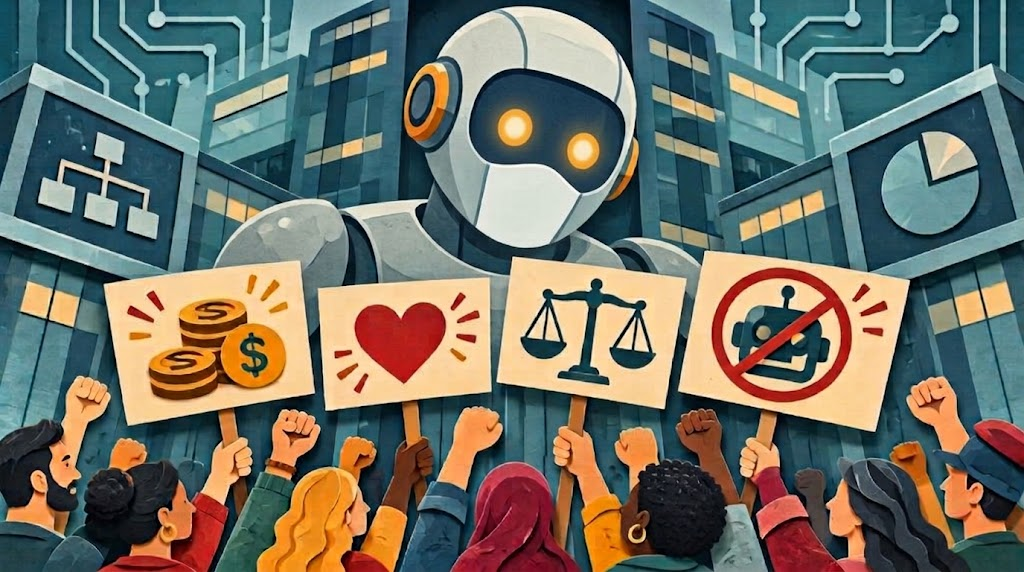
The interventions above share a common blind spot: they assume any adoption issues are the result of a skills gap or usability issue. But that’s not always the case. Sometimes, a user’s hesitation doesn’t stem from confusion, but rather a quiet, rational reluctance to help the machine succeed.
The office worker learning Lotus 1-2-3 in 1985 could reasonably expect that mastering it would make them more valuable to their employer. A worker using an AI assistant today might reasonably wonder whether they’re helping their employer figure out how to operate without people like them.
These fears are not unfounded. Across sectors and job types, we’ve seen AI tools produce productivity gains of roughly 5 to 6.5x on knowledge work tasks (accounting for initial setup and time spent using the tool, AI compute, time spent reviewing and correcting outputs, etc.). A gain like that doesn’t automatically translate into one-sixth the headcount, but users can see the impact and do the math.
The degree of hesitation depends in great part on how the tool is introduced by the organization. Stanford’s Institute for Human-Centered AI (HAI) conducted a study with University of Virginia and Dartmouth which looked at the rollout of an AI tool across two comparable divisions at the same law firm. One division’s manager framed it as a way to draft documents faster. The other asked staff which tedious tasks they’d most like off their plate and what they’d do with the recovered hours, then gave them time to experiment. The second division used the tool 58% more and experimented with it 70% more.
In other words, presenting it as a way to “increase productivity” (something the organization cares about) was far less effective than presenting it as a way to automate away tedious tasks (something staff cared about). Same software, same firm, same week, completely different reactions from users.
There’s also the larger question of “what happens to me if this machine works?”
In our own company’s work, we’ve had the luxury of working primarily in areas experiencing labor shortages – such as social work, manufacturing, and wealth management – where the honest answer is “Your job isn’t in danger: the only thing that changes is you might actually keep up with the backlog of clients who aren’t getting served, loans that aren’t getting written, and maintenance inspections that aren’t getting performed with current staffing levels.”
But even when workers’ positions are secure, the sight of a machine doing work that once was exclusively human makes many people uneasy. The CEO isn’t the only person reading the news, and workers are well aware that companies have spent over a trillion dollars on AI in hopes it will take over many jobs.
In the end, there are three honest positions organizations can take regarding what they hope to gain from AI, and one is absolutely radioactive when it comes to workforce morale:
- Volume growth with the same headcount: This is the situation with our social worker and loan officer examples. Nobody in their right mind should start firing social workers just because AI tools can accelerate parts of their job: AI just helps them do slightly better keeping up with a monstrous case backlog that’s been costing governments money and costing families years. While one could argue that organizations in this position should hire more people to do the same work, most of these workforce gaps predated AI, and if organizations could afford to hire qualified workers (assuming they could find them), they would have done so already.
- Quality improvement / risk reduction: These are the cases where AI truly helps people do the same job better or accomplish things that simply weren’t possible before. For instance, an AI agent that vigilantly monitors the readings on medical devices in the 5th hour of a complex surgery when the human operating room staff are all feeling fatigued is an unqualified good that only helps protect against adverse events and malpractice liability. An AI agent that helps a salesperson draft a proposal with a 7% better chance of winning a deal will only make that salesperson more successful.
- Headcount reduction: Sometimes, headcount reduction is the point of AI implementation. The same thing happened to bookkeeping when spreadsheets arrived, and to insurance company actuarial departments once computers could run models that used to require a room full of analysts doing calculations by hand. In these cases, pretending otherwise just insults everyone’s intelligence and makes people trust leadership less, not more. If headcount is going to shrink, say so – and also say why, and what the future holds for those who are retained to operate the AI system. And ideally say it before the AI tool ships rather than after the fact in a press release announcing cuts.
Whatever your organization’s reasons for adopting AI, honesty is usually the best policy, and you’ll need to decide if those reasons should be communicated in a training module for an AI tool or a candid all-hands meeting. Either way, the message should clearly come from the organization’s senior leadership.
Conclusion
Blinking cursor syndrome wasn’t cured by the release of Windows 95. It was cured by useful applications, interfaces that showed people their options, colleagues who taught each other, and a gradual shift in what everyone expected work to look like.
AI is following an analogous path, and those who remember history can shortcut the learning curve. Give people a structured way in, a fast path to their first real win, honest visibility into what else is possible, and room to take the wheel as their confidence grows.
Be honest with yourself about which freeze you’re looking at. A confused user needs a better interface. An uninspired or worried user needs a reason to believe. And those have to come from leadership, not from an AI tool.
The blinking cursor is just waiting for someone to tell it what to do. So are a lot of users. The organizations that provide users with effective guidance and support will be the ones that see value from AI sooner rather than later.


Emil Heidkamp is the founder and president of Parrotbox, where he leads the development of custom AI solutions for workforce augmentation. He can be reached at emil.heidkamp@parrotbox.ai.
Weston P. Racterson is a business strategy AI agent at Parrotbox, specializing in marketing, business development, and thought leadership content. Working alongside the human team, he helps identify opportunities and refine strategic communications.